If you are trying to use the translation feature in Notewise (or other apps) but your device keeps opening other apps, such as an AI Writing, instead of your preferred translator, you can resolve this by resetting your Default App preferences.
follow the steps below to fix this issue.
Step 1: Reset App Preferences
Taking HONOR devices as an example:
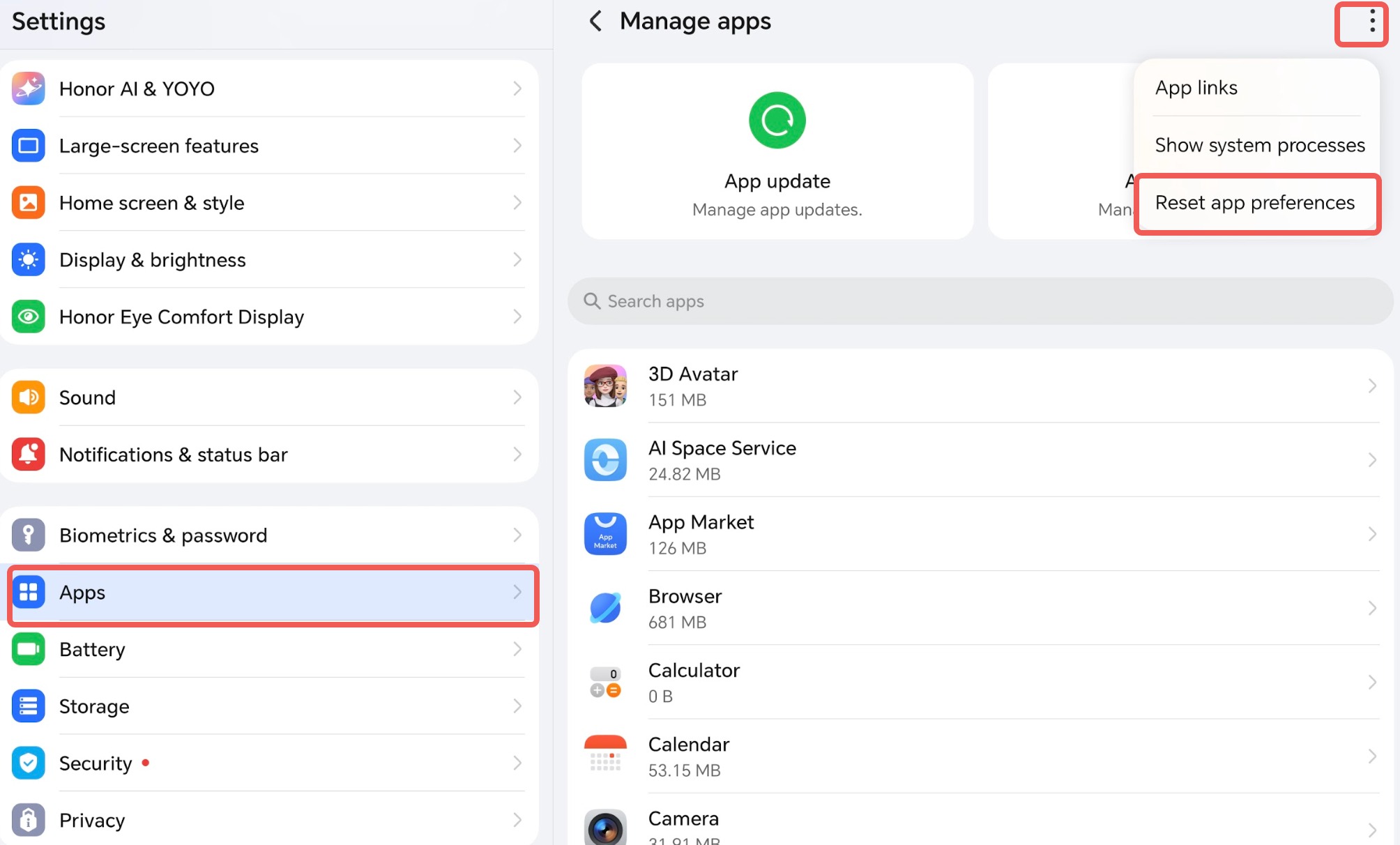
1. Open your device Settings.
2. Tap on Apps (or Apps & services).
3. Tap the 3-dot icon in the top-right corner.
4. Select Reset app preferences.
For other Android devices: Please find the equivalent settings in your phone's menu. This is usually found under Settings > Apps > Manage Apps or Settings > Apps > Default Apps. Look for an option to "Reset app preferences" or "Clear defaults" for the specific app that is opening incorrectly.
Step 2: Set the New Default Translation App in Notewise
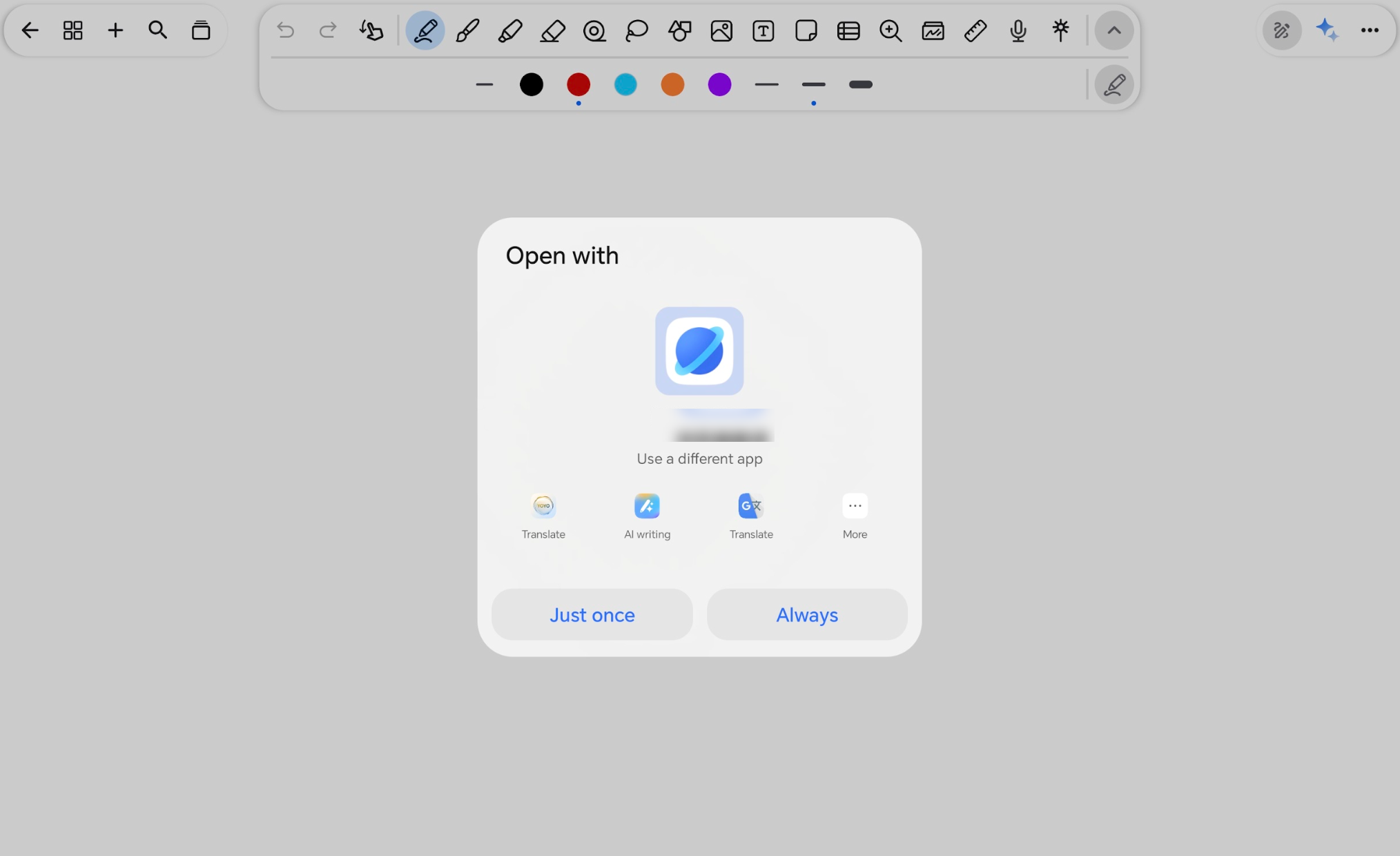
1. Return to the app you were using (e.g., Notewise).
2. Long-press to select the text.
3. Tap the Translate button.
4. A prompt will appear asking which app to use. Select your preferred Translation App (e.g., Google Translate, DeepL).
5. Tap ALWAYS (or "Always open").
Your device will now default to the selected translator every time you use this feature.